

“Where’s the image I just saved?”
“Which folder did I put last week’s budget sheet in?”
“Opening my asset library feels like digging through seven layers of folders—my mouse is practically smoking!”
If these questions sound familiar, chances are you’re only using your file manager at its most basic level. In fact, the deepin file manager is packed with a whole suite of efficient features designed to make file management smooth, quick, and organized.
Today, we’re uncovering these “hidden gems you might not know about”! Whether you’re a longtime deepin user or just getting started, these 9 practical tips—centered around finding, using, and searching for files—will help you break free from inefficient file management for good.
1. Finding Files: From “Deep Sea Diving” to “Instant Lock-on”
Is your folder a mess of hundreds of images and documents, with a cluttered list that makes your eyes glaze over? Try these tricks to make your target files impossible to miss.
1️⃣ Tree View
Right-click on the top bar or an empty area in the file manager and enable Tree View. It displays the complete directory structure in a clear, visual “tree” layout—like a map of your files.
Perfect for source code projects, multi-layered asset libraries, or deeply nested folders, it lets you grasp complex structures at a glance. No more manually clicking through paths or memorizing long addresses.

2️⃣ Group Display
Right-click in an empty area of the file list and choose a grouping option—by name, modification time, creation time, type, size, etc. For example, grouping by Type automatically organizes all images, documents, and archives into piles, making finding files a breeze.

3️⃣ Preview View + Zoom
In icon view, hold Ctrl + Mouse Wheel to dynamically adjust icon/thumbnail sizes. Zoom out for an overview, zoom in to see image details. No more opening files one by one to find the right image, PPT, or PDF. You can also enable Show Preview on the right sidebar to view details of images, PDFs, videos, and more in real time.
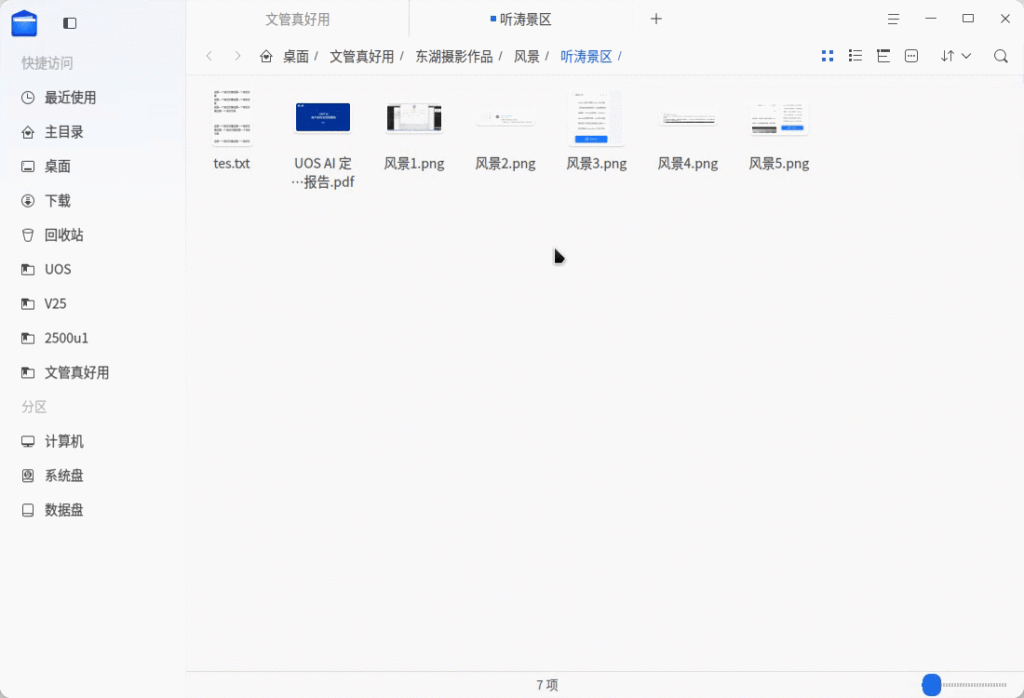
4️⃣ Color Tags
A standout feature shown above is Color Tagging. Manually assign colors to different files or folders, then click the corresponding color label in the left navigation pane to filter all files with that tag instantly.
For example, when organizing photos, tag the ones to keep in red and discardables in gray. Later, just click the red tag to review your selections—doubling your efficiency with visual management.

2. Frequently Used Folders: From “Multi-layer Maze” to “One-click Access”
How do you instantly reach folders you use daily, like “Project Files,” “Weekly Reports,” or “Design Assets”?
1️⃣ Quick Access
Right-click on any frequently used folder and select Add to Quick Access. It will then stay pinned in the sidebar—click to open, no more memorizing paths or clicking through layers.

You can also customize the sidebar in File Manager Settings → Sidebar → Sidebar Items, keeping only what you use most often for a clean, personalized workflow.
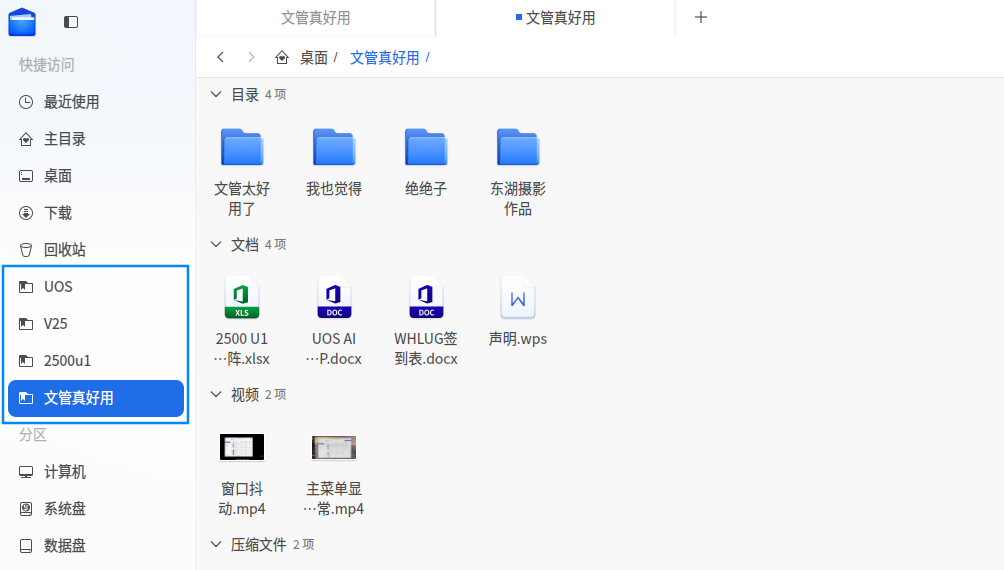
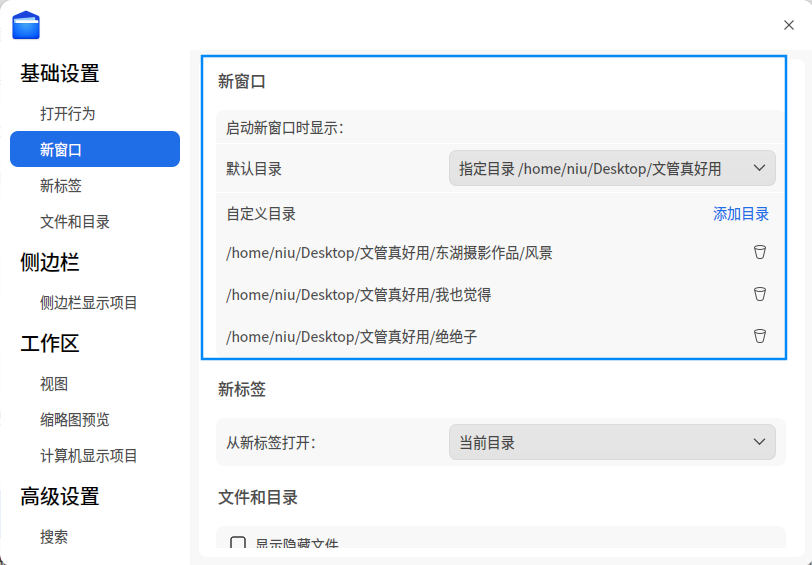
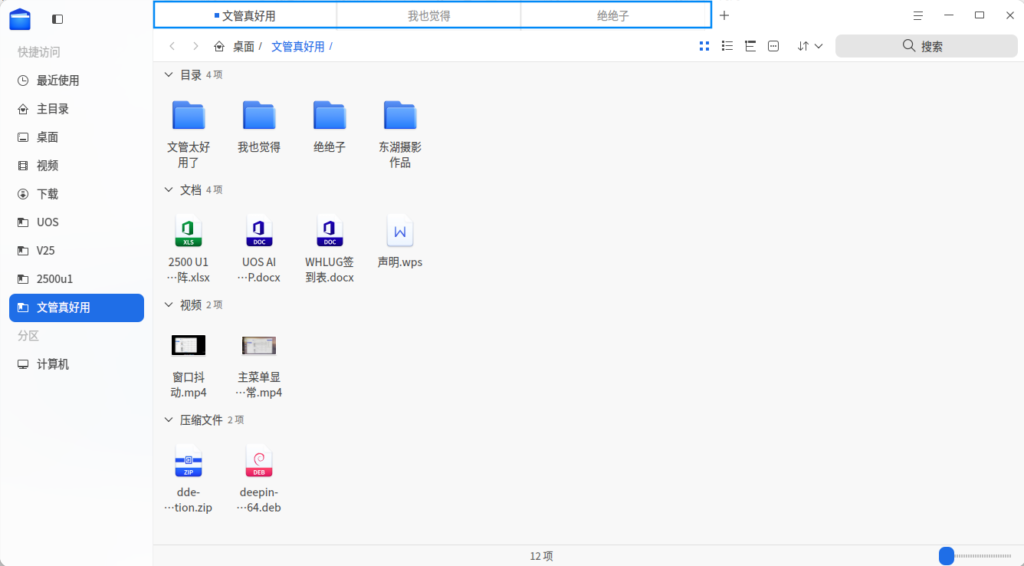
2️⃣ Pinned Tabs
In File Manager Settings → Basic Settings → New Window, change the Default Directory to your preferred path (e.g., project folder). The next time you open the file manager, it will start directly in that directory, with your custom folder pinned as a tab—a true “always-on workspace.”
3. Searching Files: From “Vague Memory” to “Pinpoint Accuracy”
Only remember a keyword? Fuzzy on the file name? Recall something from the content? Two search methods have you covered.
1️⃣ Smart In-File Search
Type a keyword into the search bar at the top of the file manager, and it will instantly match results from the current directory and all subdirectories.
Enable Full-Text Search in Settings → Advanced → Search, and it will even scan the text inside files—no more “searching for a needle in a haystack.”

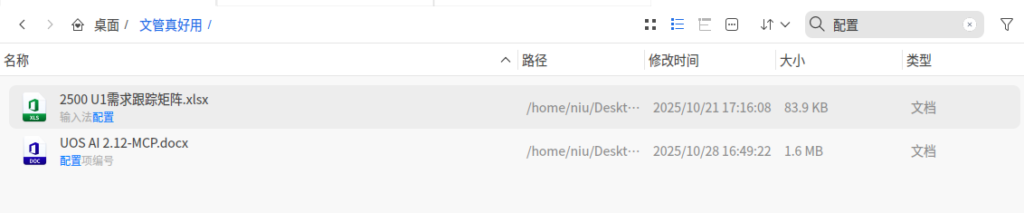
You can also enter multiple keywords separated by spaces (e.g., “budget amount”) for combined, precise filtering.
2️⃣ Global Search + AI Smart Search: Find Files with Natural Language
Click the global search icon in the taskbar or press Shift + Space to open Global Search. After enabling AI Smart Search and Full-Text Retrieval in settings and installing the Vector Model Plugin, you can use natural language queries to find files. For example: “Find the PDF I edited last Tuesday” or “Show me images from the summer trip.”